How to Optimize Your Laser Projector for a Cinematic Home Theater Experience

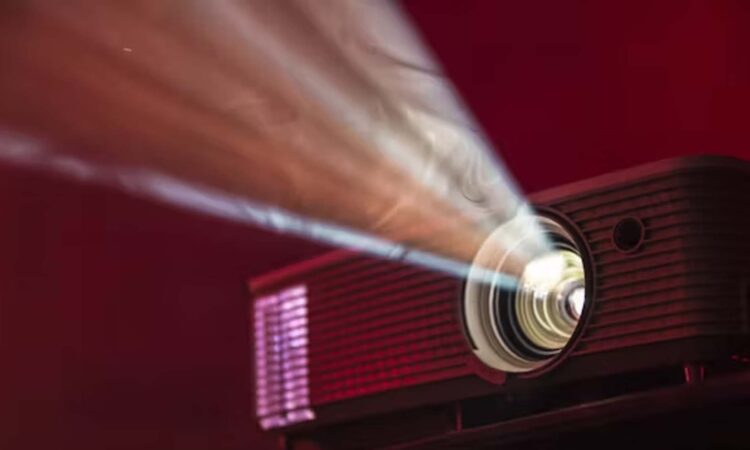
Creating a cinematic home theater experience starts with optimizing your laser projector to deliver stunning visuals. Laser projectors are known for their brightness, color accuracy, and longevity, but achieving that theater-like quality requires careful setup and calibration. This guide provides practical steps to maximize your projector’s performance, covering room setup, screen selection, ambient light control, and calibration techniques.
Choose the Right Screen for Your Laser Projector
The screen is a critical component of your home theater setup. A high-quality screen enhances the projector’s brightness and color fidelity, while a poor choice can diminish the image quality. For laser projectors, which produce vibrant colors and high contrast, a screen with a gain of 1.0 to 1.3 is ideal for most home theaters. This range balances brightness and viewing angles without creating hotspots—bright spots that disrupt uniformity.
Consider a fixed-frame screen for a dedicated theater room, as it stays taut and reflects light evenly. If flexibility is key, a motorized or pull-down screen works well, but ensure it’s made of a smooth, high-quality material like PVC or fiberglass. For smaller rooms, a gray screen can enhance contrast, especially if ambient light is a concern. Measure your room to match the screen size to your projector’s throw distance, ensuring the image fills the screen without overspill.
Control Ambient Light for Optimal Viewing
Laser projectors excel in brightness, often exceeding 2,000 lumens, but ambient light can still wash out colors and reduce contrast. To mimic a cinema, control light in your theater room. Start by installing blackout curtains or shades to block external light. If windows are unavoidable, choose curtains with a light-blocking lining or opt for automated shades for convenience.
Inside the room, minimize reflections by using dark, matte wall colors like deep gray or navy. Avoid glossy paints, which reflect light and create glare. If possible, add light-absorbing materials, such as velvet curtains or acoustic panels, around the screen to reduce stray light. For evening viewing, dimmable LED lights with warm tones can create ambiance without interfering with the projector’s output. Position lights behind the screen or along the room’s edges to avoid direct illumination on the screen.
Position Your Projector Correctly
Proper projector placement is essential for a sharp, undistorted image. Laser projectors vary in throw ratios, which determine how far they need to be from the screen to project a specific image size. Check your projector’s manual for its throw ratio and use an online throw distance calculator to determine the ideal placement. For example, a projector with a 1.5:1 throw ratio needs to be 12 feet from the screen to project an 8-foot-wide image.
Mount the projector on a ceiling bracket or place it on a stable, level surface like a dedicated stand. Ensure the projector is aligned perpendicular to the screen to avoid keystone distortion, which can degrade image quality. If slight adjustments are needed, use the projector’s keystone correction sparingly, as overuse can reduce sharpness. For ultra-short-throw laser projectors, position them just inches from the wall to maximize space in smaller rooms.
Calibrate for Color Accuracy and Brightness
Out-of-the-box settings on laser projectors are often tuned for maximum brightness, which can skew colors or cause eye strain. Calibration ensures the image matches cinematic standards. Start by selecting the appropriate picture mode—most projectors offer modes like “Cinema,” “Movie,” or “Standard.” Cinema mode typically prioritizes color accuracy and is ideal for dark-room viewing.
Adjust the brightness and contrast to suit your room’s lighting. In a dark room, lower brightness to enhance black levels and prevent washed-out dark scenes. Use a calibration disc or test patterns to fine-tune settings. For color accuracy, adjust the color temperature to around 6500K (often labeled “Warm” or “D65”) for a natural, film-like look. If your projector supports advanced calibration, tweak the RGB balance to eliminate color casts, ensuring whites appear neutral and skin tones look realistic.
Laser projectors often feature high dynamic range (HDR) support. Enable HDR for compatible content, but be aware that some projectors require manual HDR activation. Adjust the gamma setting to 2.2 or 2.4 for a balanced contrast that preserves details in both bright and dark areas. If available, use dynamic contrast or laser dimming features to enhance black levels without sacrificing brightness.
Optimize Audio-Visual Sync
A cinematic experience isn’t just about visuals—audio must sync perfectly with the image. Laser projectors often have minimal input lag, but delays can occur if you’re using an external audio system. Connect your best projector for home theater to a soundbar or surround sound system via HDMI ARC or optical output for the best compatibility. Check the projector’s audio delay settings and adjust them to align sound with the visuals, typically in increments of milliseconds.
For immersive audio, pair your projector with a 5.1 or 7.1 surround sound system. Place speakers strategically: front speakers near the screen, center speaker below or above it, and rear speakers behind the viewing area. If space or budget is limited, a high-quality soundbar with virtual surround sound can still enhance the experience.
Maintain Your Projector for Long-Term Performance
Laser projectors are low-maintenance compared to lamp-based models, but regular care ensures longevity. Keep the projector’s vents clean to prevent dust buildup, which can cause overheating and affect image quality. Use a soft, dry cloth to clean the lens, avoiding harsh chemicals that could damage coatings. Check for firmware updates periodically, as manufacturers often release patches to improve performance or add features.
Test and Tweak for Your Preferences
Every room and viewer is unique, so test your setup with different types of content—movies, sports, or games—to fine-tune settings. For example, action films may benefit from slightly higher brightness, while dramas look best with deeper blacks. Sit at different viewing angles to ensure the screen and projector alignment work for all seats in the room.
By carefully selecting a screen, controlling light, positioning the projector, calibrating settings, and syncing audio, you can transform your laser projector into the heart of a cinematic home theater. With these optimizations, you’ll enjoy vivid colors, sharp details, and an immersive experience that rivals a commercial cinema.